Zelle® for your business

It’s a fast and easy way to send and receive payments with businesses and accept payments from customers—all between eligible bank accounts in the U.S.1

Click to watch the video on how to send and receive payments Click for How To

How it works:

Fast

Receive and send money directly to and from your bank account in minutes.1

No Fees

Use Zelle® right from the Mobile Banking app2 and Online Banking with no fees.

Convenient

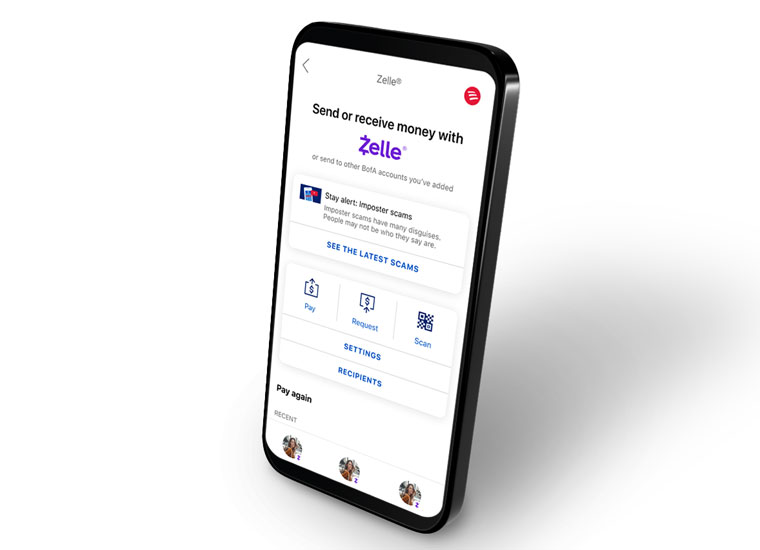
Pay and get paid quickly. In the Mobile Banking app find your Recipients and look for the purple Z next to your contacts. You’ll see who’s using Zelle®.

Get started

  1. Open the Bank of America Mobile Banking app.
  2. Sign in and tap Pay & Transfer, then tap Zelle® and Request.
  3. From there, simply follow the on-screen instructions.

Use QR codes and Zelle® tags in our app

A Zelle® tag is a unique identifier that allows you to send and receive payments without sharing your personal information. Print yours out along with your QR code and display it anywhere customers or vendors will see it—online, on invoices or anywhere you accept payments. 

Use QR codes in the app

To receive money:

  1. Tap Pay & Transfer on the bottom menu, then Zelle® and then Request.
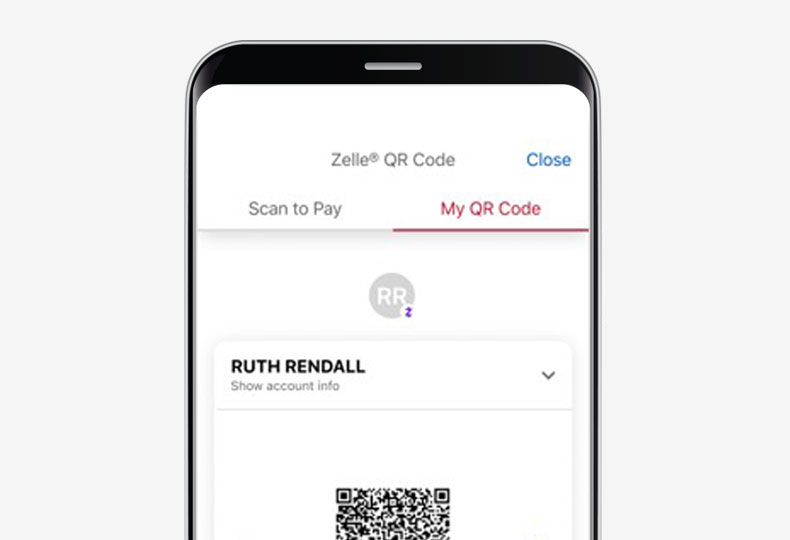
  2. Tap Scan to Pay and then tap My QR code next to the search bar to open your QR code OR after you've generated a QR code, click print or share to save a PDF of your code to be used on invoices, emails or point of sale signage.
  3. Have the person paying scan your QR code within their mobile banking app.2
  4. To simplify billing: Add QR codes to invoices to get paid fast.

How to create and use a Zelle® tag

Think of a Zelle® tag that fits with your small business (i.e., UncleFinsFishing Charters). This gives you privacy and anonymity when transacting in Zelle® but makes it easy for customers to recognize you. Consumer clients cannot create a Zelle® tag but can send or request money from your Zelle® tag.

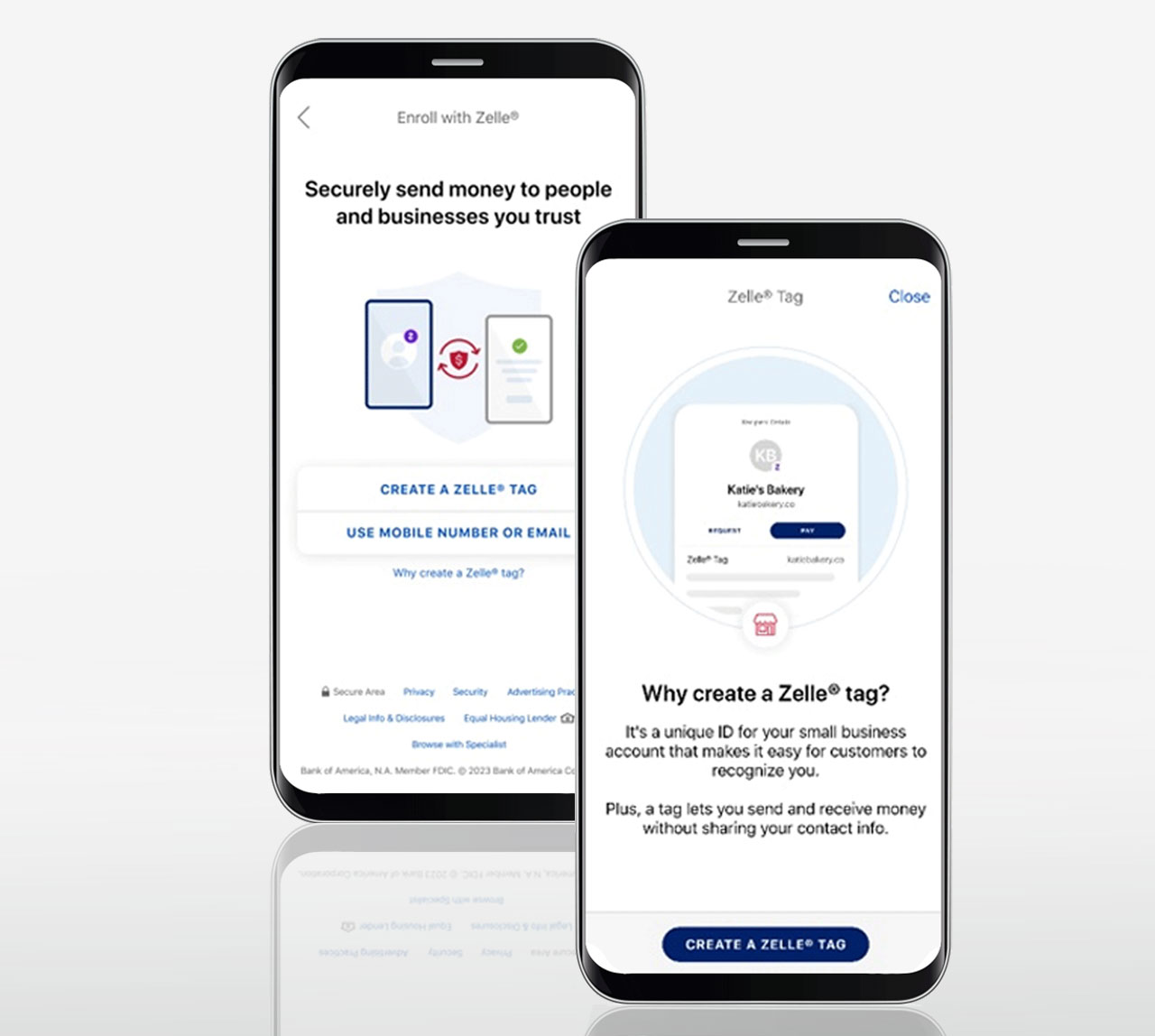
When you’re in Zelle® and begin sending a payment, a message will display giving you the option to create a Zelle® tag or use a mobile number or email.

Select Create a Zelle® tag — a message will explain what Zelle® tags are. You can then select the Create a Zelle® tag button on the bottom of the screen to begin guided enrollment.

Zelle tag inquiries

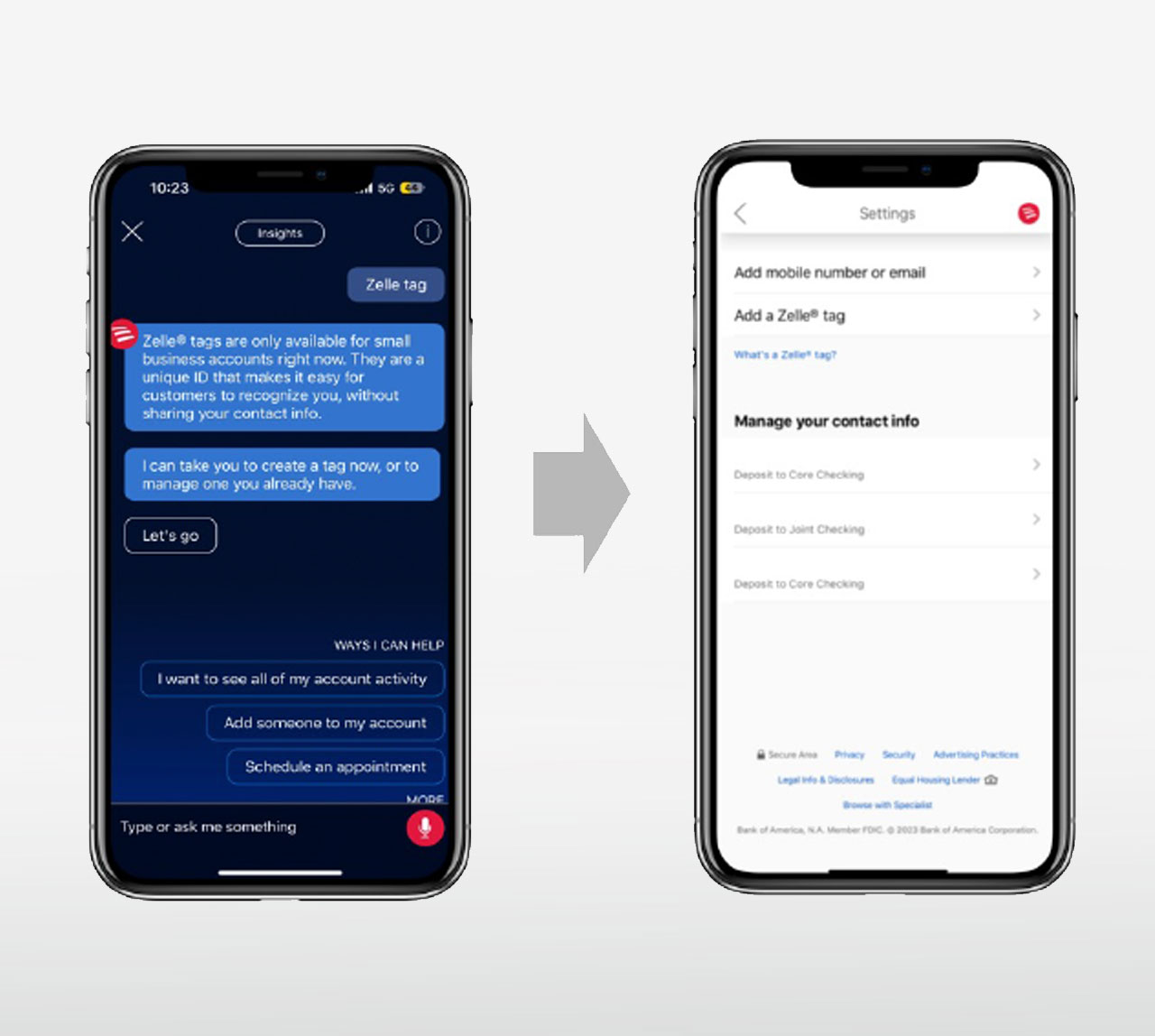
You can also use Erica®3 to inquire about, add or manage a Zelle® tag. Erica will respond with a detailed explanation and give them the option to add a Zelle® tag.

Start using Zelle® today

Download the Bank of America® Mobile Banking app to get started.

Get the app

Enter your cell phone number

Send

Explore our frequently asked questions (FAQs)

Getting started with Zelle®

Zelle® is a fast and easy way to send and receive money with friends, family or others in minutes2 between domestic bank accounts at U.S. financial institutions. Using just their U.S. mobile number, email address or tag, you can send money directly to their bank account right from yours with no fees using the Bank of America mobile app or Online Banking.

Learn more about Zelle® for eligible businesses

Eligible small business accounts can send, receive, or request money with Zelle®. To get started, log in to Online Banking or our mobile app and select Begin Setup. Enter your U.S. mobile number, email address or tag, receive and enter a one-time verification code, accept the terms and conditions and you're ready to start sending and receiving with Zelle® for your small business.

Eligible small business accounts can send, receive, or request money with Zelle®. To get started, log in to Online Banking or our mobile app and select Begin Setup. Enter your U.S. mobile phone number, email address or tag, receive and enter a one-time verification code, accept the terms and conditions and you're ready to start sending and receiving with Zelle® for your small business. If you don’t see Zelle®, please contact us.

To send money with Zelle® simply select someone from your mobile device’s contacts (or add a trusted recipient’s email address or U.S. mobile number), add the amount you’d like to send and an optional note, review, then hit “Send.” In most cases, the money is available to your recipient in minutes.1

To receive money using Zelle® with a small business account, share your enrolled email address or U.S. mobile number with your customers and ask them to send you payment with Zelle® right from their banking app. No need to share any sensitive account details. After the consumer sends you payment with Zelle® you will receive your money directly into your enrolled bank account.

To request money using Zelle®, choose “Request,” enter their enrolled email address, U.S. mobile number or Zelle® tag, confirm the recipient is correct and tap “Request.”

There’s no fee to send or receive money with Zelle® using our mobile app or Online Banking. View your Deposit Agreement and Business Schedule of Fees for general information on fees related to your deposit accounts.

Your mobile carrier's messaging and data rates may apply.

Neither Bank of America nor Zelle® offer purchase protection for payments made with Zelle® Treat Zelle® payments like cash, once you send the money, you’re unlikely to get it back. For example, if you don’t receive the item you paid for using Zelle® or the item you received is not as described, you’re unlikely to get your money back.

To get started, log in to Online Banking or the mobile app. To enroll a small business bank account with Zelle®, you must use a different U.S. mobile number or email address than the one you used to enroll your personal bank account with Zelle® or create a Zelle® tag.

If you’re enrolled with Zelle® In addition to receiving an email or text from Bank of America alerting you that you’ve received money, you can view incoming and outgoing Zelle® payments in your Zelle® Activity.

If you're not enrolled with Zelle®: You’ll receive an email or text from Zelle® with instructions on how to enroll to receive your money.

See how to enroll with Zelle® for eligible businesses

If you were expecting to receive an authorization code via email, make sure you entered your email address correctly, check your spam folder and make sure you’re not blocking emails from onlinebanking@ealerts.bankofamerica.com.

If you were expecting to receive an authorization code via text and didn’t, make sure you: used a U.S. mobile number, you entered it correctly, and check with your mobile carrier that the short code 739-81 and 992-17 is enabled. Voice over IP (VOIP), landlines and Google voice numbers are not eligible for Zelle® enrollment.

Please note that we will never call you to provide you with (or ask you for) an authorization code by phone. If you received a phone call telling you you’ve received a code, it is very likely a scammer trying to obtain access to your account. Learn more about account security and how to protect yourself from scams

No, the same U.S. mobile number or email address cannot be used for multiple accounts. Payments sent to one number or one email address can only go to one bank account. Use a different U.S. mobile number or email address to enroll a different account.

Yes. For your security, your ability to send money using Zelle® is subject to daily, weekly, and monthly limits on the dollar amount and frequency of Zelle transfers, which may be measured on either a rolling basis or calendar basis. A rolling basis means your limit is determined over the preceding time period (e.g., 24 hours, 7 days, or 30 days). A calendar basis means the limit resets at midnight ET for each calendar day, week, and month. There may be additional restrictions based on your Zelle® history and/or your recipient. Read more about Zelle® limits.

You can send or receive payments with other eligible small businesses or consumers when their bank offers Zelle® for their account type. The recipient must be enrolled with Zelle® with a linked domestic deposit account at a U.S. financial institution.

Sending, Receiving & Managing Payments

To send money with Zelle®, if you know that your recipient is enrolled with Zelle® ask them to confirm the U.S. mobile number, email address or tag they want to receive money. Then, to send money:

  • Log in to the mobile app or Online Banking and find Pay & Transfer
  • Choose Zelle® and select Pay
  • Choose who you want to pay from your contacts or search for a recipient in the Add/search name, tag, contact field
  • You can send one-time immediate, one-time future-dated, or recurring payments. To set up a recurring payment series with Zelle®, select the Make payment recurring toggle. You can also use the calendar function on the Choose a payment date screen to schedule a one-time future-dated payment
  • Before you send the payment, check the first/last or business name in the Enrolled with Zelle® as field to verify your recipient is correct

You can also send money with Zelle® by asking Erica® in the How can we help? section of the mobile app or with the mobile widget.

Once you send money, both you and your recipient will be notified. Send money now

To receive money with Zelle®, you’ll need to enroll your U.S. mobile number or email address (the sender needs to use the specific U.S. mobile number or email address that you enrolled). Note that only U.S. mobile numbers are eligible. Voice over IP (VOIP), landlines and Google voice numbers are not eligible for Zelle® enrollment.

Not a Bank of America customer? You can still receive money using Zelle® Visit the Zelle® enrollment page and follow the instructions.

View our guided demo for more information on enrollment.

The easiest way to add a new recipient is while you’re sending them money.

  • Log in to the mobile app or Online Banking and find Pay & Transfer
  • Choose Zelle® and select Pay
  • Choose who you want to pay from your contacts or search for a recipient in the Add/search name, tag, contact field
  • Before you send the payment, check the first/last or business name in the Enrolled with Zelle® as field to verify your recipient is correct

To send money using a QR code, tap the QR code icon next to Pay and Request to open your device’s camera. Scan your recipient’s QR code to easily get the contact information without having to manually enter it. From Pay or Request, select My QR Code and then select your preferred contact method.

To receive money with your Zelle® QR code, print or share your QR code. Find it by logging in to the mobile app, tapping Pay & Transfer, then Zelle®, tap on the QR Code icon next to Pay and Request. Select My QR Code and then your preferred contact method. ​

You can request payments directly through our app by tapping Pay & Transfer, selecting Request, entering your customer’s U.S. mobile number, email address or tag, confirming the recipient is correct, and tapping Request. Note: Payment requests can only be sent to enrolled Zelle® users.

Here are a few ways you can encourage your customers to pay your small business with Zelle®:

  • Print or share your QR code. Find it by logging in to the mobile app, tapping Pay & Transfer, then Zelle®, tap on the QR Code icon next to Pay and Request. Select My QR Code and then your preferred contact method. ​
  • Tell customers verbally that you accept payments with Zelle® and that they can easily send you payments right from their banking app.
  • Add “I accept payments with Zelle® on your invoice and include the email address, U.S. mobile number and/or tag you wish them to use to send their payment.
  • Use Zelle® to request payments1 from your customers (which will send them a notification telling them you’ve requested payment with Zelle®).

This feature is only available in the mobile app. You can request money from one or more recipients in the mobile app by navigating to Request within Zelle®. To split the bill, add up to 10 recipients to the request by selecting Add Recipient4. The request will automatically split the total amount, and you have the option to include your portion in the calculation or change the amounts for each recipient. Note: Payment requests can only be sent to enrolled Zelle® users.

Outstanding payment requests that you’ve sent can be canceled and will automatically expire after 14 days. Outstanding payment requests will be visible in Payment Activity under Action Needed, while expired, completed, or canceled payment requests will be visible under History.

If your recipient is enrolled with Zelle®, money is typically available within minutes. However, there are circumstances when the payment may take longer. For example, if your recipient isn’t enrolled, they will need to enroll to receive their money. Once they enroll, money is typically available in their account in minutes. Note that once you initiate your payment, money will be deducted from your available balance and placed on hold until the recipient enrolls. If your recipient does not enroll within 14 days of when the money is sent, the money is released back to your account, and the transaction is cancelled.

See the Why is my outgoing Zelle® payment pending? question for more information.

You can see incoming and outgoing Zelle® payments (both pending and completed) in Activity. You can also ask Erica® on our mobile app to view your Zelle® activity. To view older transactions, check your account details.

In some cases, Bank of America may place an incoming Zelle® payment on hold for further review. While these reviews are happening, the hold cannot be removed. Check your alerts in Message Center to see if action is required. Once a decision has been made, the payment will complete automatically or it will fail, and the money will be deposited into your account or back into the sender's account, as applicable.

Sending money with Zelle® typically occurs in minutes when your recipient is already enrolled. However, there are circumstances when the payment may take longer.

Payment status is Pending acceptance: If your recipient has not enrolled with Zelle®4 they must enroll using the same email address or U.S. mobile number where you sent money. Once they enroll, the payment will be processed normally. You can cancel the payment while the payment is in pending status, and the payment will automatically be canceled if the recipient doesn’t enroll after 14 days.

Payment status is Pending review: In some cases, Bank of America may place a payment on hold for further review. While these reviews are happening, the payment cannot be canceled. Check your alerts in Message Center to see if action is required. Once a decision has been made, the payment will complete automatically or will fail, and the money will be deposited back in your account or the sender’s account.

Payment status is Paid: In some cases, your recipient’s financial institution may cause a payment to be delayed. The payment cannot be canceled while it’s processing. Your recipient can reach out to their financial institution for a status update.​

Your payment may fail and/or your scheduled payments may be canceled for these reasons:

  • The payment account is closed, doesn’t have available funds or is ineligible to use Zelle®
  • The recipient is deleted or has an invalid account number, email address or mobile number​
  • Security reasons or your payment otherwise can’t be processed​
  • The applicable daily, weekly, or monthly transfer ($ or frequency) limit was exceeded

No, Zelle® payments cannot be reversed. You can only cancel pending payments to recipients not yet enrolled with Zelle®. You can see incoming and outgoing Zelle® payments (both pending and completed) in Payment Activity. Any Zelle® payment already sent to an enrolled recipient cannot be canceled.

Sending money with Zelle® typically occurs in minutes when your recipient is already enrolled. However, there are cases where the payment may not be immediate. See the Why is my outgoing Zelle® payment pending? question for more information.

If the payment has been sent but your recipient has still not received the money, verify that the U.S. mobile number, email address or tag you used to send money matches your recipient’s U.S. mobile number, email address or tag with Zelle®. You can only cancel pending payments to recipients not yet enrolled with Zelle®. Any Zelle® payment already sent to an enrolled recipient cannot be canceled.

Any Zelle® payment already sent to an enrolled recipient cannot be canceled. Make sure you check your recipient’s contact information before you send money by looking for the enrolled recipient’s first/last or business name in the Enrolled with Zelle® as field. Treat Zelle® payments like cash — once you send the money, you’re unlikely to get it back.

Account Settings & Controls

You can use Zelle® with multiple banks, but you must have a different U.S. mobile number or email address linked to each account you enroll with Zelle®. If you try to use the same U.S. mobile number or email address to enroll with Zelle® at multiple banks, you’ll receive an error message.

In order to use Zelle®, the sender and recipient’s bank or credit union accounts must be based in the U.S.


Yes. While you can enroll, send, receive and view your Zelle® activity in both Online Banking and our mobile app, the app allows you to access more advanced features like request money from one or more recipients, send money scanning someone else’s QR code or receive money using your QR code and customize Zelle® access using the mobile widget.

When you enroll your email address or U.S. mobile number with Zelle®, you must link an eligible deposit account that will be used to receive money. You can change this account at any time in your Zelle® settings. If you want to receive money using multiple deposit accounts, you can enroll up to 5 different email addresses or U.S. mobile numbers and link each one to a different deposit account.

You can send money using Zelle® from any eligible deposit account. When you send a payment, you’ll be able to select the deposit account. The deposit account you choose will become the default the next time you make a payment, but you have the option to change it each time.

If you no longer wish to send, receive or request money with Zelle®, delete all your U.S. mobile numbers, email addresses or tags in Zelle® settings so they can’t be used. You won’t be able to use Zelle® again unless you enroll a U.S. mobile number, email address or tag.​

You can only enroll authenticated U.S. (or U.S. territory) mobile numbers that belong to you. Voice over IP (VOIP), landlines, Google Voice numbers, 1-800 numbers and international numbers are not eligible for Zelle® enrollment.

When you enroll a U.S. mobile number or email address with Zelle®, you’ll automatically receive alerts to the contact information you’ve enrolled. You can change your alert settings, including the primary contact where alerts are delivered, by going to Contact Info in Settings on your mobile app or by selecting Alerts in the Accounts section in Online Banking.

When you use Zelle® your recipients won’t see your account number, and you won’t see theirs. Your recipient will only see your name or business name and U.S. mobile number, email address or tag enrolled with Zelle®.

Visit our Security Center to learn more about account security.

In your recipient list, you’ll see Zelle® recipients and recipients you’ve previously set up using their Bank of America account. The purple Z logo on your recipient indicates they’re a Zelle® recipient enrolled with an U.S. mobile number, email address or tag. A Bank of America logo on your recipient indicates that you’ve set up the recipient with their Bank of America account, and any payments you choose to send to this recipient will be sent as an internal transfers instead of Zelle®.

Yes, you can use Zelle® to set up a one-time future dated payment or recurring payment series. As you’re scheduling the Zelle® payment, select the Make payment recurring toggle to set up recurring payments. Or, use the calendar function on the Choose a payment date screen to schedule a one-time payment for a future date.

See the How do I send money with Zelle®? question for more information.

You can edit or cancel a one-time future dated payment or recurring payment series any time until 11:59 p.m. ET the day before its scheduled payment date by going to Payment Activity under Scheduled. You can cancel a single payment within a recurring payment series or cancel the entire series. However, you can’t edit a single payment within a series.

Find your upcoming payments in the Scheduled section within Payment Activity in Online Banking or the mobile app. On the day of the scheduled payment, it will move to Processing, then to History once it’s complete.

We’ll email you at your primary email address for communications related to scheduled payments. You’ll receive email confirmations when you schedule a payment or recurring payment series, reminders about upcoming payments, and notifications if a payment fails or is canceled. Make sure your contact information kept up to date including your primary email address. To review or update your info, go to Contact Info in Settings. You can manage certain payment reminders in Alert Settings.

You’ll see “Zelle® Scheduled payment” or “Zelle® Recurring payment” on your statement to differentiate from one-time immediate payments.

As of March 31, 2025, all users must be enrolled through one of the more than 2,300 banks and credit unions that offer Zelle® in order to send and receive money. You can find a full list of participating banks and credit unions live with Zelle® at Zelle.com. If their bank or credit union is not listed, we recommend you use another payment method at this time.

It is a unique ID for your small business account that makes it easy for customers to recognize you and can be used to send, receive, or request money instead of your U.S. mobile number or email address. ​

Yes, you can have up to 5 U.S. mobile numbers, email addresses, and Zelle® tags in combination.

Zelle® QR code provides peace of mind knowing you can send and receive money, without typing or providing an email address or U.S. mobile number.

To locate your Zelle® QR code, log into the mobile app, tapping Pay & Transfer, then Zelle®, tap on the QR Code icon next to Pay and Request. Navigate to “My QR Code.” From here you can view and use the print or share icons to text or email your Zelle® QR code.

To send money, log into the mobile app, tapping Pay & Transfer, then Zelle®, tap on the QR Code icon next to Pay and Request. Once you allow access to your camera, simply point your camera at the recipient’s Zelle® QR code, enter the amount, hit “Send,” and the money is on the way! When sending money to someone new, it’s always important to confirm the recipient is correct by reviewing the displayed name before sending money.

You can create a Zelle® tag in mobile or online banking. If you are not already enrolled in Zelle® you can create a Zelle® tag when you enroll for the first time. If you already use Zelle®, you can create, customize, and edit your tag by going to Zelle® settings.

A contact method for a Zelle® tag is a required U.S. mobile number that will be used for authentication when you are creating your Zelle® tag.

A Zelle® tag is no different than your enrolled email address or U.S. mobile number. It lets you send and receive money just like your email address and U.S. mobile number without sharing your contact info.

Add a U.S. mobile number to your contact info by logging into Online Banking and clicking Profile & Settings then Your contact info.

Note: You must come back to Zelle® settings to finish creating a tag, as we don't do it automatically.

A best practice is to match or closely align your Zelle® tag to your business name. Avoid using personal names, expletives, etc., while creating your tag. Your chosen Zelle® tag is submitted to check its availability. If the requested Zelle® tag is unavailable, you can choose to create another tag.

Security & Fraud Protection

Visit our Security Center to learn more about scams.

We’ll never call and ask you to send money using Zelle® to yourself or anyone, nor will we contact you via phone or text to ask for a security code. If someone unfamiliar to you does this, it's likely a scam.

Visit our Security Center to learn more about scams. Qualifying imposter scams may be eligible for reimbursement.

Keeping your money and information secure is a top priority for Bank of America. When you use Zelle® within our online banking or mobile app, your information is protected with the same technology we use to keep your Bank of America account secure.